Lesson 03 — Cloning a Repository
Copy a GitHub repository to your computer and confirm that Git can see it correctly.
What cloning means
Section titled “What cloning means”To clone a repository means to download a full working copy from GitHub to your computer.
After cloning, you have:
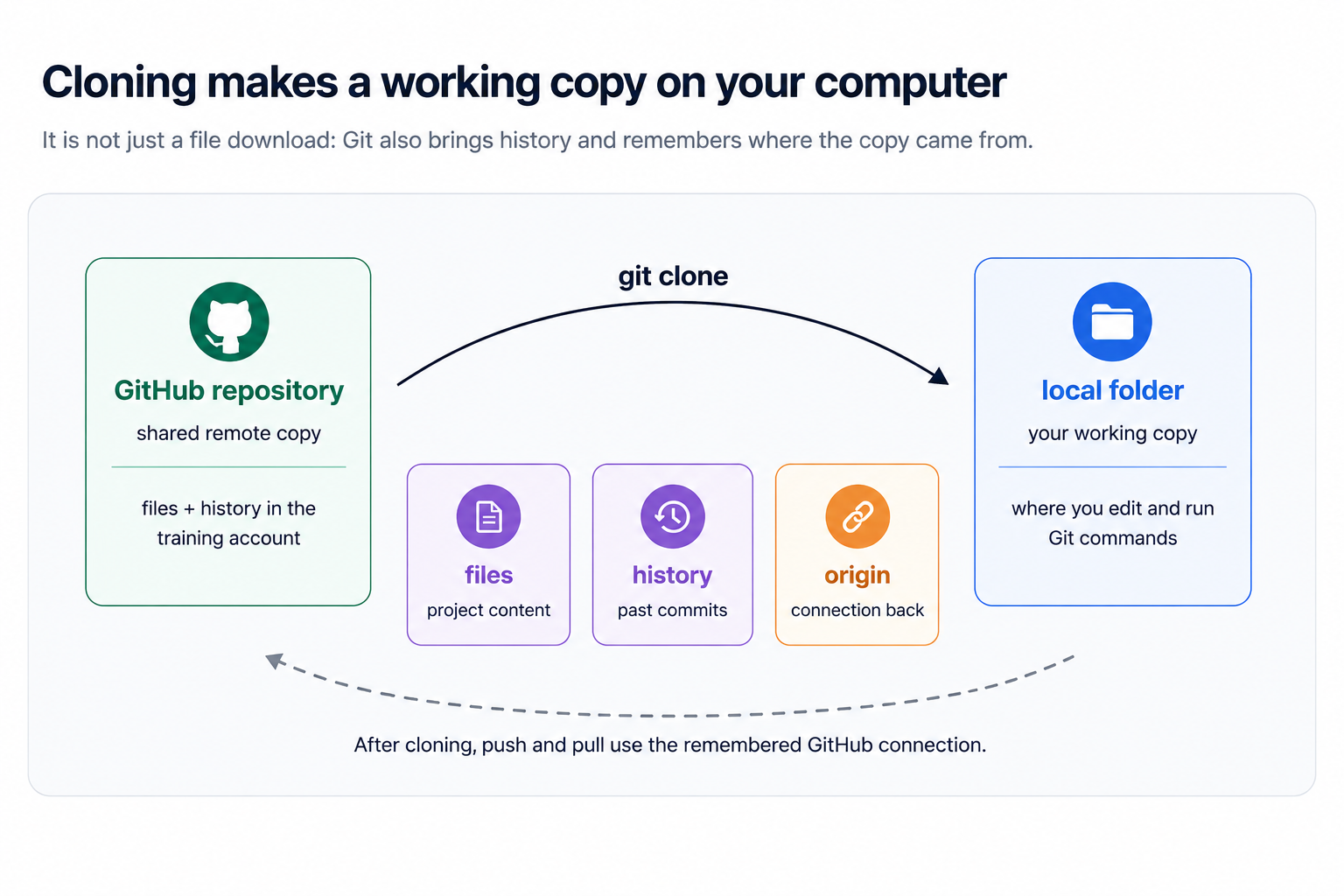
- The project files
- The Git history
- A connection back to the GitHub repository
For this course, learners should work in their own copy of a practice template such as git-basics-sql-practice.
Recommended practice setup
Section titled “Recommended practice setup”Open the public SQL practice template repository:
- Go to BigInformatics/git-basics-sql-practice.
- Click Use this template.
- Create a new repository under your own GitHub account or training organization.
- Clone your new repository, not the course site.
This keeps practice work separate from the course materials.
Checklist
Section titled “Checklist”1. Find the repository on GitHub
Section titled “1. Find the repository on GitHub”- Open your learner-owned practice repository in GitHub.
- Click the green Code button.
- Copy the HTTPS URL.
It will look like:
https://github.com/your-account/git-basics-sql-practice.git2. Choose where to put the project
Section titled “2. Choose where to put the project”In your terminal, move to a folder where you keep projects.
Example:
cd Documents3. Clone the repository
Section titled “3. Clone the repository”Run:
git clone https://github.com/your-account/git-basics-sql-practice.gitReplace the URL with the actual repository URL.
- The repository downloaded successfully.
4. Move into the repository folder
Section titled “4. Move into the repository folder”Run:
cd git-basics-sql-practice- I am now inside the repository folder.
5. Check status
Section titled “5. Check status”Run:
git statusExpected result:
On branch mainnothing to commit, working tree cleanThe wording may vary slightly. The important points are that you are on a branch and Git does not show unexpected changes.
- Git says I am on a branch, usually
main. - Git says my working tree is clean.
6. Confirm the GitHub connection
Section titled “6. Confirm the GitHub connection”Run:
git remote -vYou should see the GitHub URL for your learner-owned practice repository.
-
originpoints to my practice repository.
Completion check
Section titled “Completion check”- I can clone a repository.
- I can move into the repository folder.
- I can run
git statusinside the repository. - I can run
git remote -vto see the GitHub connection. - I know whether I am working in my practice repository or the course site.